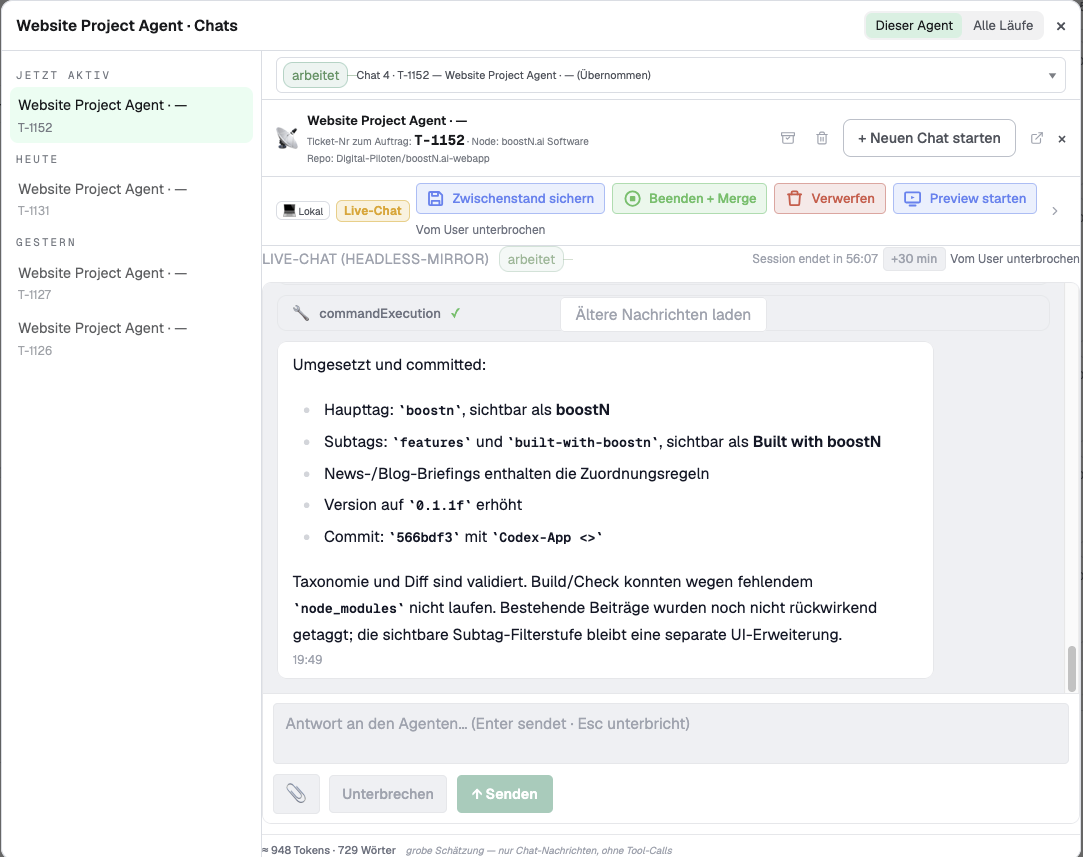
Start Preview: open and test your agent's work with one click
You can now click “Start Preview” in an agent chat and open the current implementation directly. boostN gives you a working preview that you can explore and test for yourself. You do not need to open a repository, know any Git commands, or set up a local development environment. There is now only one button between “the agent is done” and “I can see whether this works for me.”
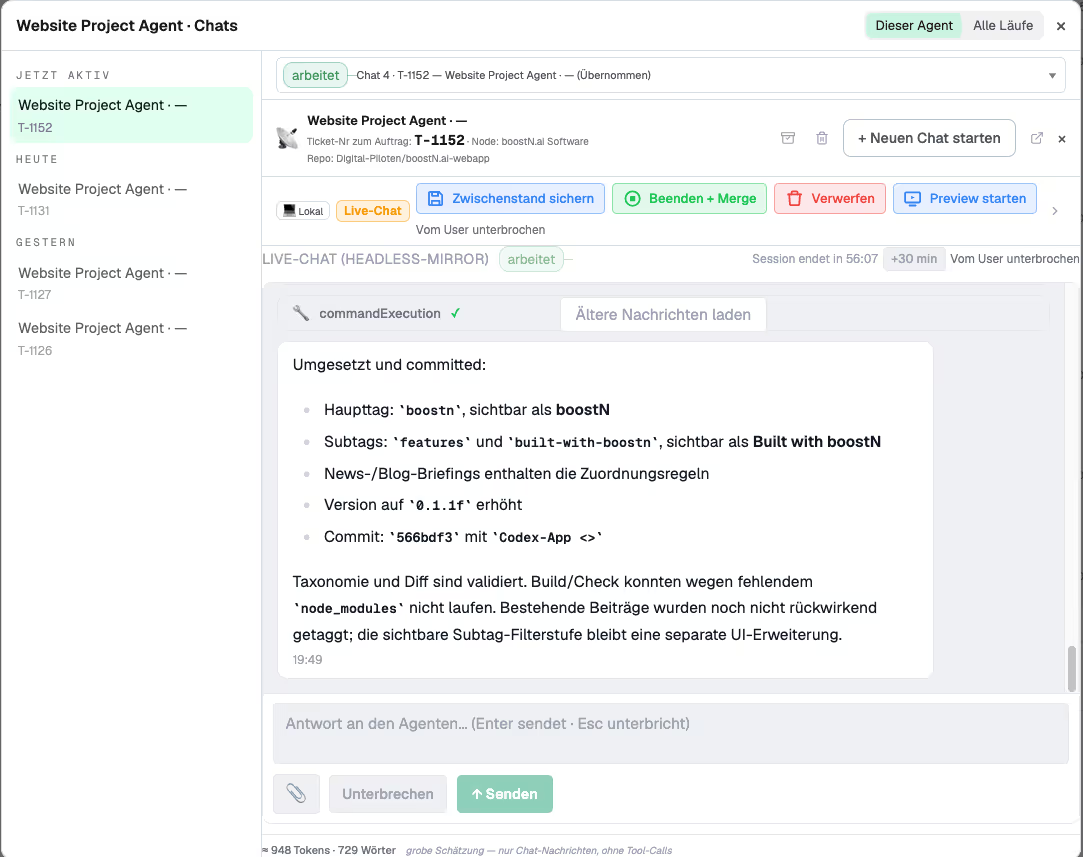
The implementation opens directly from the chat
The new button sits where you already review the agent's work.
When you want to check the agent's progress, you start the preview from the same view. boostN handles the technical path to the open preview in the background.
What changed
- Preview from the chat: The new button is available in an agent chat’s action bar.
- A working result opens: You get an interactive preview of the current implementation.
- No Git knowledge required: Branches, commands, and local setup stay in the background.
- Test it directly: You can check the interface, layout, and flow before accepting the work.
How it worked before
An agent could complete a task and explain exactly what it had changed. There was still a gap between finished work and a result you could see for yourself. To inspect the implementation, you needed to know how to open the correct version, start the project, and find the right address in your browser.
That routine is normal for developers. For everyone else, it is an unnecessary barrier. Even a small change could sound convincing in a written summary without ever appearing in front of you. Whether a button is in the right place, a page makes sense, or an interaction behaves correctly is easier to judge in a preview than in ten lines of technical reporting.
How it works now
1. You stay in the agent chat. When the agent finishes its work, or when you want to inspect an intermediate result, you do not have to switch environments. The entry point to the preview sits alongside the chat actions.
2. boostN handles the technical step. Clicking “Start Preview” triggers the required process and opens the implementation for you. Whatever needs to happen in the background is no longer your concern. You can focus on the result.
3. A description becomes something you can use. The preview is not a static screenshot. You can interact with the implementation, move through pages, and check whether it behaves the way you expected. Your feedback becomes more precise as a result: instead of saying that something does not feel right, you can point to the exact step that needs another pass.
Why it matters
I built “Start Preview” because an implementation only becomes tangible when you can use it yourself. The agent can explain its changes, but it cannot replace your own judgement. For interfaces in particular, what you see and experience while clicking matters.
The meaningful change is not the extra button. It is the shorter loop between implementation and review. More people can judge an agent’s work without first learning development tools. That makes the process more accessible and leaves less room for misunderstandings.
A preview still does not replace final acceptance testing. Different devices, real data, and unusual edge cases deserve a separate look. It does answer the first and most important question immediately: is what the agent built broadly what I asked for?
What you can do now
When your agent has made a visible change: Start the preview from the chat and walk through the affected flow yourself.
When something needs another pass: Describe the exact point you reached in the preview. The agent gets clearer feedback and can adjust the implementation more precisely.
When you have no development background: Use the preview in exactly the same way. The button is deliberately not limited to developers — you need neither Git nor a local project.
How the agent already reached the right project
The new preview builds on the execution engine that routes dashboard tasks to the correct project: → Dashboard tickets that run on any repository
Sources
This is a first-party product announcement based on the released product state on September 14, 2026.